![01-manara-orange-1.jpg]](https://support.manara.tech/hs-fs/hubfs/01-manara-orange-1.jpg?width=227&height=122&name=01-manara-orange-1.jpg)
After completing the learning path and clicking “Submit Request” to fill out the voucher request form, the Manara team will take a couple of days to review the information you submitted. You will then be contacted via email for confirmation.
Once the review process is complete, you will receive confirmation that your voucher has been issued. You can then proceed with the next steps, starting from Step 2 below:
Step 2: Check that the Manara Chrome Extension is installed
Make sure the Manara Chrome Extension is installed in your browser. The following steps will not work if the extension is not installed.
If you haven’t installed it yet, make sure to install the extension before proceeding.
Step 3: Get your Extension Secret
- Log in to your Manara account.
- Go to the Learning page for the learning path you want to book an exam for.
- Copy the Extension Secret provided on the learning path page.
For example: https://app.manara.tech/learning/6/landing-page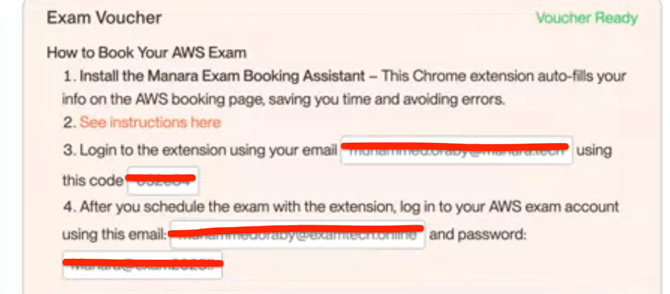
- Download the latest zip for the extension from the Google Drive "here"
- Extract the zip into a folder.
- On Google Chrome, type ( chrome://extensions/ ) on the URL bar:
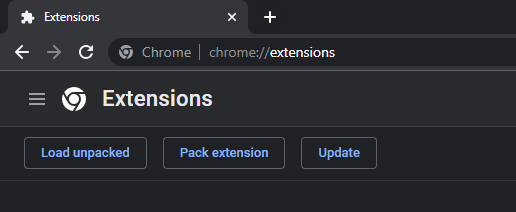
- Make sure to have “developer mode” enabled to unpack the extension.
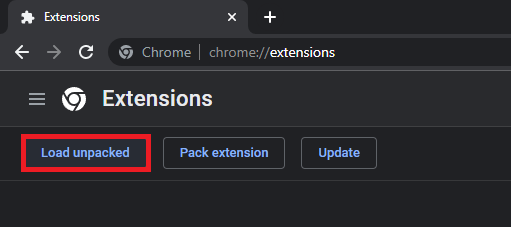
- Click on Load Unpacked and select the folder you extracted the .zip to (NOT the .zip file itself)
- Click on the Extensions Icon and click on Manara booking assistant from the drop down menu:
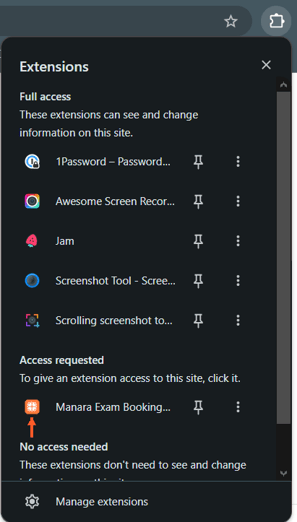
- You should be greeted with the following login page:
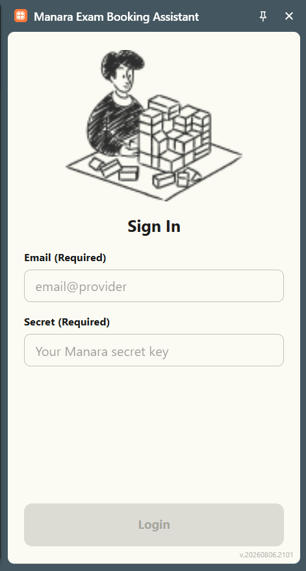
- Verify that you have installed the latest version of the extension. The latest build number is
v.20260807.2028. You can find the installed version number as the gray number shown in the bottom-right corner of the screen above. - Enter your Manara email and the extension secret below from Step 3, then click Login.
- After successful authentication, you should see a page similar to this. Select the learning path you want to book the exam for from the list, then click Continue.
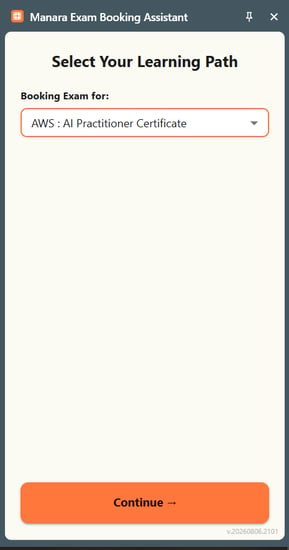
- You can now start the exam booking process through the extension.
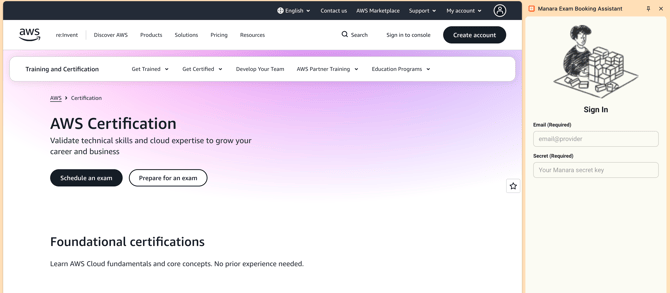
- Visit the AWS Certification page: https://aws.amazon.com/certification/ and follow the exam booking steps. The extension will guide you through the required steps and automatically fill in the necessary information.
-
Make sure to click “Run Now” on the Manara Chrome Extension whenever an autofill is requested on the AWS website.
Then, click “Continue” on the AWS website to proceed to the next page.
How to Book Your Exam:
For detailed instructions on how to book your AWS exam using your voucher, please watch the video below. It walks you through the booking process step by step, including how to use your voucher and complete the exam registration.
https://www.youtube.com/watch?v=YMlKou6NCf4